
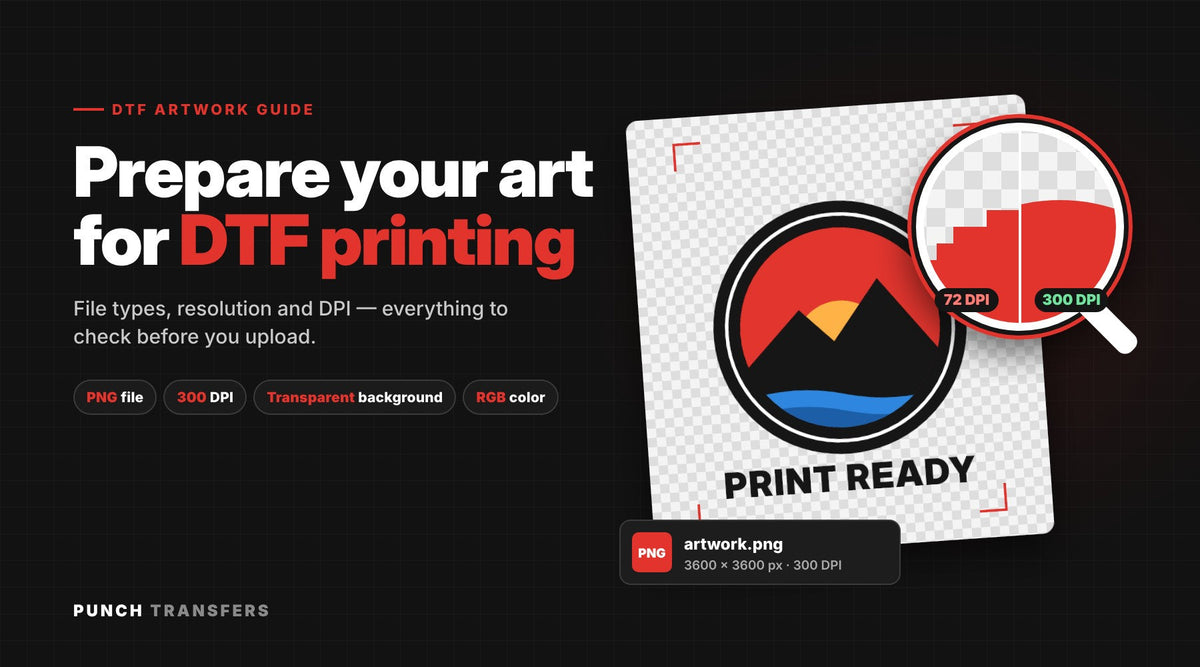
Quick answer: To prepare artwork for DTF printing, save your design as a PNG with a transparent background, sized at the exact print size you want, at 300 DPI, in RGB (sRGB) color mode. Remove semi-transparent pixels, drop shadows and soft glows, and keep lines and text thick enough to hold up (at least about 1 pt for lines and 6 to 8 pt for text). If your file meets those rules, it will print sharp and press clean.
Most DTF printing problems don't start at the printer. They start with the file. A blurry logo, a white box around the design, or a fuzzy edge almost always comes from artwork that wasn't set up for direct-to-film. This guide from the Punch Transfers print team in Fall River, Massachusetts covers everything you need to know before you upload your art.
Key takeaways
- Best file type: PNG with a transparent background.
- Best resolution: 300 DPI at the final print size (150 DPI is the minimum for acceptable results).
- Color mode: RGB / sRGB. Do not convert to CMYK.
- Size: Build the file at the actual size you want it printed. Don't count on scaling up.
- Avoid: semi-transparency, soft shadows, glows, feathered edges, and hairline details.
- Gang sheets: Punch Transfers gang sheets are 22 inches wide, from 24 inches up to 240 inches long.
What file type is best for DTF printing?
PNG is the best file type for DTF printing because it supports a true transparent background. DTF prints exactly what's in your file, so any background color, including white, gets printed as part of your transfer. A transparent PNG makes sure only your design ends up on the film.
| File type | Good for DTF? | Notes |
|---|---|---|
| PNG | Best choice | Supports transparency. Export at 300 DPI at print size. |
| AI, EPS, SVG, PDF (vector) | Great source files | Scale to any size without quality loss. Export to a transparent 300 DPI PNG for upload, or contact us first. |
| PSD | Good source file | Hide the background layer and export as PNG. |
| JPG / JPEG | Not recommended | No transparency, so the background prints as a solid box. Compression adds artifacts. |
| Screenshots / web images | Avoid | Usually 72 DPI and far too small. They print blurry. |
What resolution and DPI do you need for DTF transfers?
Use 300 DPI at the final print size. DPI (dots per inch) measures how much detail is packed into each inch of the printed transfer. At 300 DPI, edges look crisp and small details stay readable. Below 150 DPI, you'll start to see pixelation and soft, jagged edges.
The key phrase is at the final print size. A file labeled "300 DPI" that's only 2 inches wide will not print well at 12 inches. What matters is the total pixel count. Use this simple formula:
Print width (inches) × 300 = pixels needed
Pixel size chart for common DTF placements (300 DPI)
| Placement | Typical print width | Pixels needed (width) |
|---|---|---|
| Hat / beanie front | 2 to 4 in | 600 to 1,200 px |
| Left chest / pocket logo | 3.5 to 4 in | 1,050 to 1,200 px |
| Sleeve | 3 to 4 in wide | 900 to 1,200 px |
| Youth full front | 8 to 10 in | 2,400 to 3,000 px |
| Adult full front | 10 to 12 in | 3,000 to 3,600 px |
| Full back | 12 to 14 in | 3,600 to 4,200 px |
| Full gang sheet width | 22 in | 6,600 px |
Can you fix a low-resolution image by raising the DPI? No. Changing a 72 DPI image to 300 DPI in Photoshop doesn't add real detail. It only stretches the pixels you already have. Start from the original high-resolution file or a vector version of your logo. If you don't have one, have the art recreated or vectorized.
Should DTF artwork be RGB or CMYK?
Submit DTF artwork in RGB, ideally sRGB. DTF printers use CMYK plus white ink, but the RIP software that drives the printer is built to convert RGB files. If you convert to CMYK yourself, colors often look dull or muddy, especially bright greens, blues, oranges and neons. Keep the file in RGB and let the RIP handle the conversion.
One thing to keep in mind: screens glow and fabric doesn't. Very bright on-screen colors may print a little less saturated. If exact color matters, such as a brand color, order a DTF sample pack or a small test run first.
How do you make a transparent background for DTF?
Any pixel in your file that isn't transparent will print. Here's how to remove the background in the most common tools:
- Adobe Photoshop: Delete or hide the background layer, then go to File > Export > Export As, choose PNG, and make sure Transparency is checked.
- Adobe Illustrator: Go to File > Export > Export As, choose PNG, set resolution to 300 PPI, and set the background to Transparent.
- Canva: Download as PNG and check Transparent background (requires Canva Pro). Increase the size multiplier so the pixel width matches the chart above.
- Procreate: Turn off the background color layer, then share as PNG.
Quick check: Open your PNG on a dark background. If you see a white or colored box around your design, the background isn't transparent yet.
Common DTF artwork mistakes (and how to avoid them)
1. Semi-transparent pixels, shadows and glows
DTF prints a white underbase beneath your colors. Areas set to partial opacity, such as soft drop shadows, glows, feathered edges, or faded brush strokes, can print as a hazy, uneven film or press poorly. Fix: Set every element to 100% opacity, or convert soft gradients and fades into a halftone dot pattern.
2. Lines and text that are too thin
Hairline strokes and tiny text can break apart or peel. Fix: Keep lines at least about 1 pt (roughly 0.35 mm) thick and text at least 6 to 8 pt, larger for script or thin fonts. Make sure small isolated dots aren't tiny specks.
3. Stray pixels and leftover background
Background removal tools often leave faint pixels at the edges or loose specks around the design. Those print too. Fix: Zoom in to 200% or more and clean up edges before exporting.
4. Artwork built too small
Pulling a logo from a website or social media profile almost always gives you a file that's too small. Fix: Use the pixel chart above. If your file has fewer pixels than the chart calls for, find a better source file.
5. Text not outlined
If you're starting from a vector file, fonts can swap out when the file opens on another computer. Fix: Convert text to outlines (Illustrator: Type > Create Outlines) before exporting.
6. White parts of the design you meant to be "empty"
On a black shirt, a white area in your file prints white ink. If you wanted the shirt color to show through, that area needs to be transparent instead. Fix: Decide which parts are ink and which should show the garment, and knock out the rest.
How to set up artwork for a DTF gang sheet
A gang sheet lets you print many designs on one sheet and cut them apart, which is the most cost-effective way to order DTF. Punch Transfers gang sheets are 22 inches wide and come in lengths from 24 inches up to 240 inches (20 feet), with no minimums or setup fees.
- Size each design at its final print size before placing it on the sheet.
- Leave about 0.25 to 0.5 inch of space between designs so you can cut them apart cleanly.
- Keep everything inside the 22-inch width.
- Fill the sheet. Extra small logos, sleeve hits and tags in empty space cost nothing extra.
- Every design on the sheet should follow the same rules: transparent background, 300 DPI, no semi-transparency.
Only need a few individual designs? Order DTF transfers by size instead.
DTF artwork checklist before you upload
- ☐ File is a PNG
- ☐ Background is fully transparent
- ☐ Built at the exact print size
- ☐ 300 DPI at that size (check the pixel width)
- ☐ RGB / sRGB color mode
- ☐ No semi-transparent pixels, soft shadows or glows
- ☐ Lines at least ~1 pt and text at least 6 to 8 pt
- ☐ Edges cleaned up, no stray pixels
- ☐ Text outlined (for vector source files)
- ☐ Gang sheet designs spaced and within 22 inches wide
Frequently asked questions about DTF artwork
What is the best file format for DTF printing?
PNG with a transparent background is the best file format for DTF printing. It preserves transparency, so only your design prints, with no background box. Vector files like AI, EPS, SVG and PDF make excellent source files and can be exported to a 300 DPI transparent PNG.
What DPI should DTF transfers be?
DTF artwork should be 300 DPI at the final print size. 150 DPI is the practical minimum. To find the pixels you need, multiply the print width in inches by 300. For example, a 12-inch-wide design needs 3,600 pixels across.
Can I use a JPG for DTF printing?
JPG files are not recommended for DTF because they can't have a transparent background. The background, usually white, prints as a solid rectangle around your design. Convert the art to a transparent PNG first.
Should I use RGB or CMYK for DTF printing?
Use RGB, ideally sRGB. DTF RIP software is designed to convert RGB files to the printer's CMYK and white inks. Converting to CMYK yourself often makes colors look duller.
Why does my DTF transfer have a white box around it?
A white box means the file's background wasn't transparent, so the printer treated it as part of the design. Remove the background and re-export the file as a PNG with transparency turned on.
Can DTF print gradients and soft shadows?
DTF prints solid color gradients well, but fades into transparency, soft drop shadows and glows can print hazy or press unevenly. Converting those effects into a halftone dot pattern gives a cleaner, more durable result.
How wide is a DTF gang sheet at Punch Transfers?
Punch Transfers gang sheets are 22 inches wide and available in lengths from 24 inches up to 240 inches, with no minimums or setup fees. At 300 DPI, a full-width gang sheet file is 6,600 pixels wide.
What is the smallest text size for DTF transfers?
As a rule of thumb, keep text at 6 to 8 pt or larger and lines at least about 1 pt thick. Thin script and serif fonts should be larger still so they don't break apart when pressed.
Need help with your file?
Punch Transfers is a DTF transfer supplier based at 657 Quarry St in Fall River, Massachusetts, serving screen print shops, apparel brands and creators across Massachusetts, Rhode Island, New England and the rest of the U.S. Orders placed Monday through Friday before 12 PM ET ship the same day. If you're not sure your artwork is ready, contact us before you order, email orders@punchtransfers.com, or call 1-774-770-6201. We're happy to take a look.
Ready to print? Build a gang sheet or order DTF transfers by size.
Keep reading
Ready to press?
Put these tips to work
Order DTF transfers by size, build a gang sheet, or try a free sample pack first.


